![logo-type_black 2.svg]](https://help.collaboard.app/hubfs/logo-type_black%202.svg)
Before starting read this article How to set up Collaboard MCP Server
Requirements
Before you begin, make sure you have the following:
- A Claude.ai Pro, Team, or Enterprise plan
- Access to a Collaboard Advanced or Enterprise subscription
- Permission to create an OAuth client in Collaboard
Step-by-step instructions
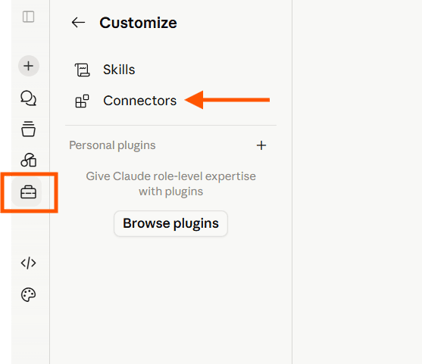
1. Open the Customize in Claude
Open Customize in Claude and click on Connectors
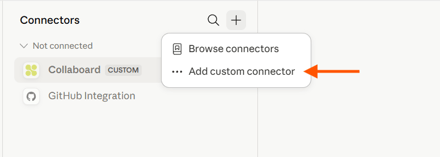
2.Add a custom connector in Claude
Click on the Plus icon and on "Add custom connector".
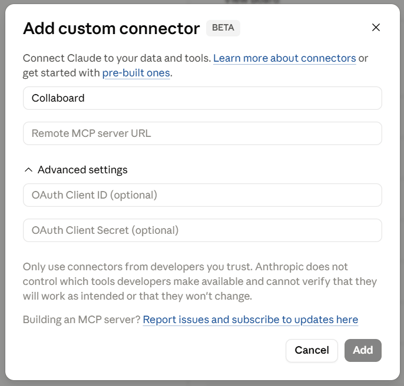
Enter a name for your custom connector and enter the Remote MCP server URL.
As next step you need to add the OAuth Client ID and you can add an oAuth Client Secret (optional).
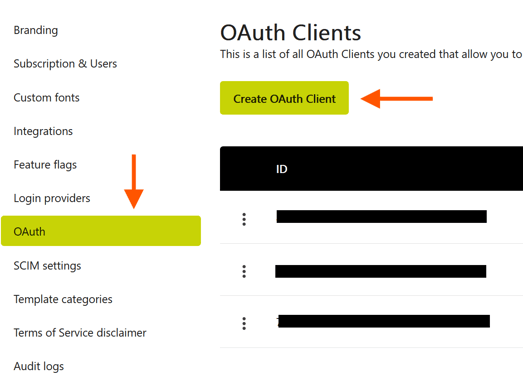
3.Create OAuth Client in Collaboard
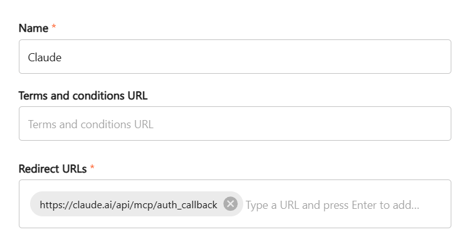
Open settings and click on OAuth. Then on Create oAuth Client
Claude does not provide a custom Redirect URL. Therefore use the following standard Redirect URL from Claude: https://claude.ai/api/mcp/auth_callback
5. Generate the client secret (optional)
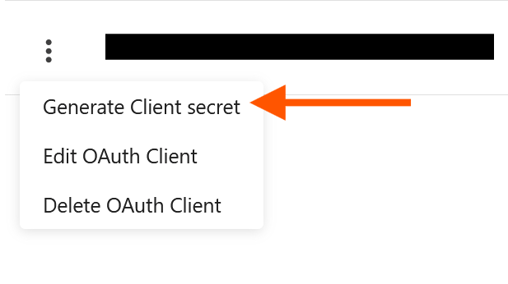
In Collaboard, open the three-dot menu of the OAuth client you created.
Generate a new Client Secret.
Copy the following values:
- OAuth Client ID
- OAuth Client Secret
6. Complete the setup in Claude
Go back to Claude
Enter the following information from Collaboard:
- OAuth Client ID
- OAuth Client Secret
Then click Add.
Collaboard and Claude are now connected through the Collaboard MCP Server.
Start using Collaboard with Claude
After the connection is complete, you can start asking Claude to work with Collaboard.
For best results, mention in your prompt that Claude should use the Collaboard MCP Server.
Example prompt
Create a SWOT analysis template in Collaboard using the Collaboard MCP Server.You can also ask Claude to create visual workspaces based on meeting notes, workshop ideas, strategy topics, project plans, or existing Collaboard whiteboards.