![logo-type_black 2.svg]](https://help.collaboard.app/hubfs/logo-type_black%202.svg)
Text size
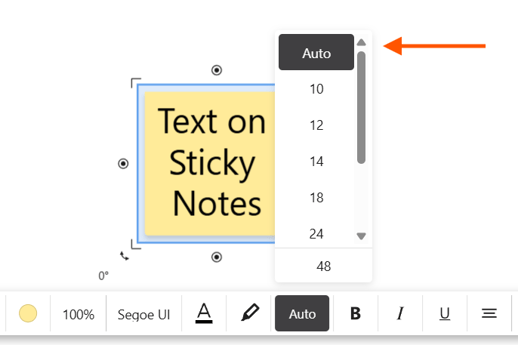
Sticky notes support an Auto text size option.
This means the more text you add, the smaller the font becomes automatically so the content fits inside the sticky note.
You can also manually adjust the text size using the toolbar.
Text formatting
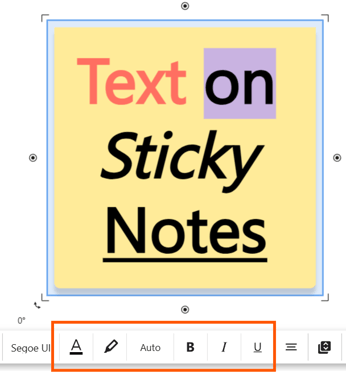
Use the toolbar to format the text on a sticky note:
-
Bold
-
Italic
-
Underline
-
Text highlight
- Text color
- Font
Text alignment
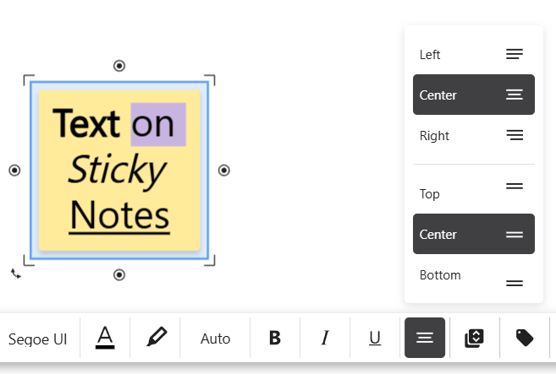
You can align text inside the sticky note:
-
Left, center, or right
-
Top, middle, or bottom
This helps structure content clearly, especially when working with longer notes.
Working with large amounts of text
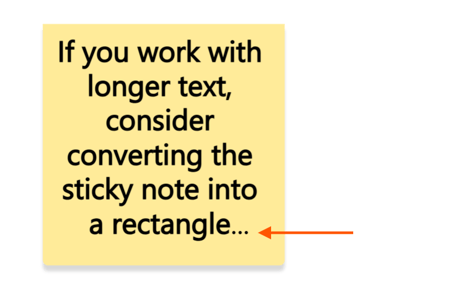
If a sticky note contains a lot of text, three dots (…) appear at the end of the note to indicate that more content is available. You can expand the sticky note to view the full text.
Tip:
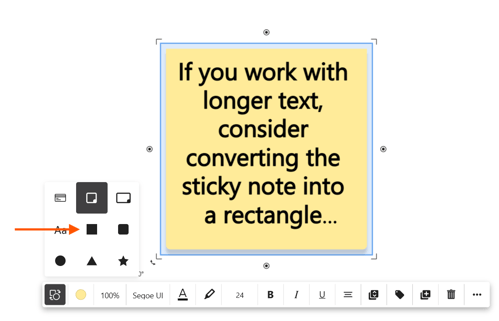
If you work with longer text, consider converting the sticky note into a rectangle shape. This provides more space and a better editing experience. Rectangle shapes can also have a background color, similar to sticky notes.