![logo-type_black 2.svg]](https://help.collaboard.app/hubfs/logo-type_black%202.svg)
What are Quick links?
Quick links are saved views of specific areas on your board. They allow you to:
- quickly jump to relevant content
- keep large boards clearly structured
- organize presentations in a logical way
From the Quick links overview, you can navigate directly to any defined area of the board at any time.
Create Quick links
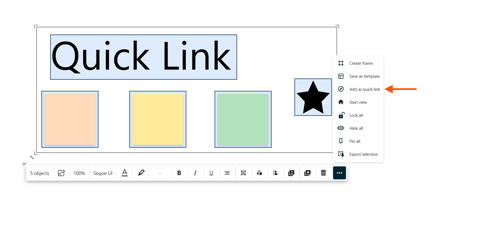
- Select one or more objects on the board.
- Open the three-dot menu.
- Click Add as Quick link.
- Enter a name for the Quick link.
- Confirm by clicking Create.
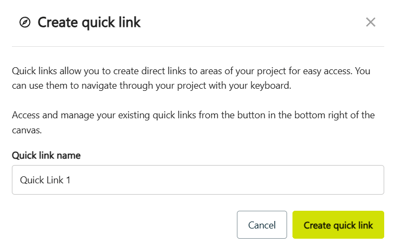
You need facilitator permissions to create Quick links.
View Quick Links
- Open Quick Links in the bottom-right corner of the board.
- The Quick Links panel opens and displays all created Quick Links.
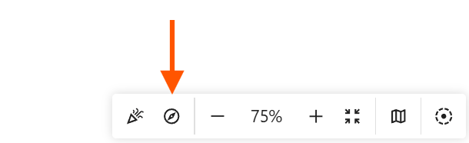
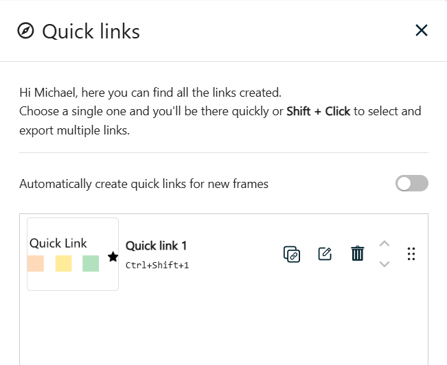
All users and guests who have access to the board can view Quick Links.
Use the Quick Links panel
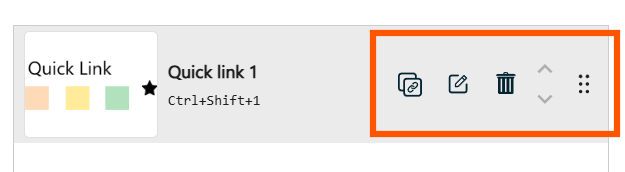
In the Quick Links panel, you can manage and use all your Quick Links:
- Jump to a Quick Link
Double-click a Quick Link or click Go to link. - Rename
Change the name of a Quick Link. - Delete
Remove Quick Links you no longer need. - Change the order
Rearrange Quick Links using drag and drop. - Share link
Create a URL to a Quick Link and share it with others.
This only works for users who already have access to the board.
Export Quick Links
Quick Links can be included when exporting a board. This allows you to reuse or document defined areas individually.
Learn more about exporting Quick Links.
Quick Links in presentation mode
In presentation mode, Quick Links work like slides:
- Move from one area to the next.
- Use the arrows to navigate through the sequence.
- The presentation follows the order defined in the Quick Links panel.
Adjust the order in the panel to control the flow of your presentation.
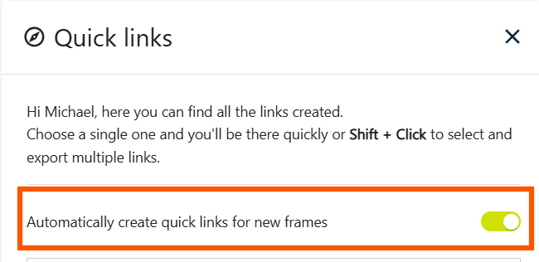
Automatically create Quick Links for new frames
You can automatically create a Quick Link whenever a new frame is added to the board.
To enable this option:
- Open the board settings.
- Enable Automatically create quick links for new frames.
Once enabled, every newly created frame will automatically get a corresponding Quick Link.
Important: Quick Links are only created for frames added after the setting is enabled. Existing frames are not converted into Quick Links automatically.