![logo-type_black 2.svg]](https://help.collaboard.app/hubfs/logo-type_black%202.svg)
These settings are especially useful when working with different devices such as a mouse, touchpad, or pen during workshops or meetings.
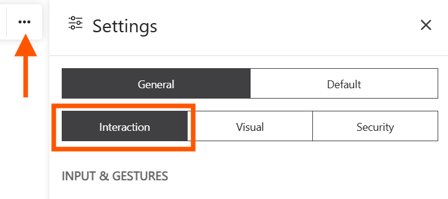
How to open the Interaction settings
- Click the three dots menu in the top right corner
- Select Settings
- Open the General tab
- Select Interaction
Input and gestures
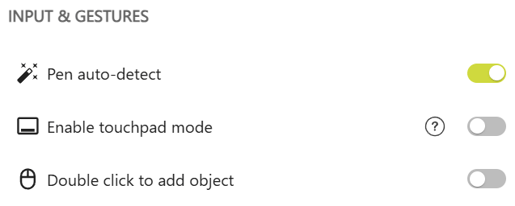
These settings define how input devices behave on the board.
- Pen auto detect
Automatically detects a pen. When enabled, Collaboard distinguishes between pen and mouse input. When disabled, the pen behaves like a mouse. - Enable touchpad mode
Optimizes navigation for touchpad usage. This changes how zooming and panning work. - Double click to add object
Adds a new object directly on the board with a double click. Collaboard remembers the last object you added (for example yellow sticky note) and with a double click you can add this object.
Object behavior
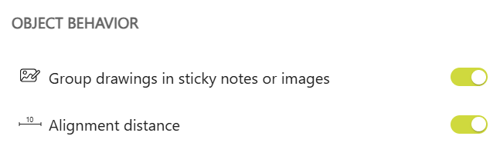
These settings control how objects behave on the board.
- Group drawings in sticky notes or images
Drawings created on sticky notes or images stay grouped with the object. This helps keep content organized. - Alignment distance
Shows the distance between objects on the board. This helps you position elements more precisely and keep consistent spacing.
User interface
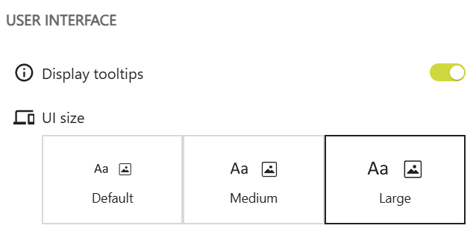
These settings affect helpful UI elements.
- Display tooltips
Shows tooltips when hovering over tools and actions. This helps you understand features faster. - UI size
Adjusts the size of interface elements. Choose between Default, Medium, or Large depending on your screen and preference.