![logo-type_black 2.svg]](https://help.collaboard.app/hubfs/logo-type_black%202.svg)
Introduction
Collaboard allows subscription owners and managers to create OAuth clients directly in the Collaboard settings. This feature is not available in the Free version of Collaboard.
Create a New OAuth Client
To create a new OAuth client in Collaboard:
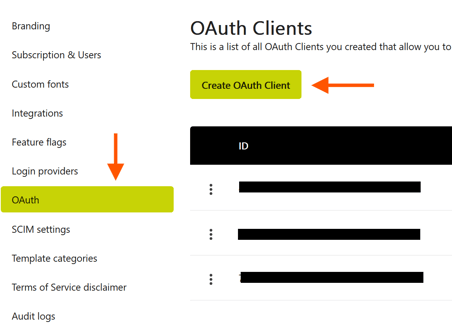
1.Open the Settings page in Collaboard and click on OAuth Clients and on Create OAuth Client.
Enter the requested information and confirm.
| Field | Description |
|---|---|
| Name | Name of the OAuth client or application. |
| Terms and conditions URL | URL to the terms and conditions for the application (optional and only relevant when you self-host Collaboard). |
| Redirect URLs |
One or more redirect or callback URLs used for the OAuth connection. Important: After adding the URL press Enter. |
| Logo URL | URL or data string for the logo used in the OAuth branding (optionla, can be relevant if you branded your Collaboard version). |
| Logo height | Height of the displayed logo (optional, can be relevant if you branded your Collaboard version). |
| Primary color | Main branding color used for the OAuth client (optional, can be relevant if you branded your Collaboard version). |
Example: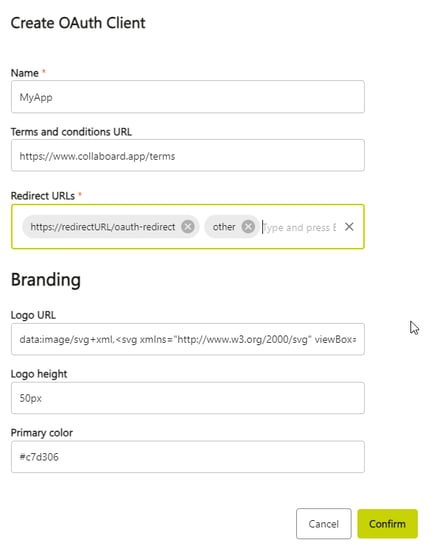
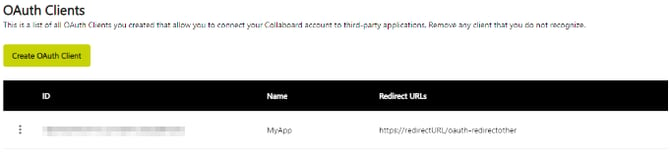
The new oauth client will display in the list:
Client secret
Only needed. if the 3rd party app requires a secret. Should be used by trusted apps only (eg server apps, not single-page web apps).
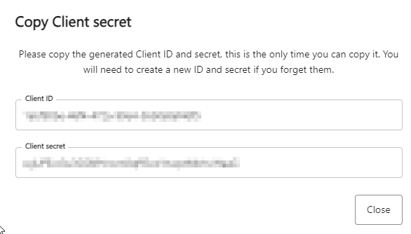
Select the three dot menu and generate a secret: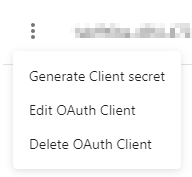
Copy client ID and secret to the 3rd party application settings to establish an oauth connection.
Use the new oauth client
As indicated above, you need to grab the Client secret and Client ID and copy it to the oauth set up in your 3rd party application.