![logo-type_black 2.svg]](https://help.collaboard.app/hubfs/logo-type_black%202.svg)
The text export lets you export all text-based content from your whiteboard as a .csv file.
This export works best for elements that contain text, such as sticky notes, text fields, and shapes. Files like images, videos, or imported documents can also be included, but only their file names will appear in the export.
How it works
-
Open the export menu.
-
Select Text as the export type.
-
Click Export project or Export selection.
A .csv file will be generated.
Data included in the text export
The .csv file contains the following values:
-
TileID – Internal ID of each element on the whiteboard
-
Text – Content of the object (available for sticky notes, text, and shapes)
-
TypeTile – Type of element (for example StickyNote, Shape, Image)
-
FileName – File name (for uploaded documents, images, and videos)
-
PositionX / PositionY – Coordinates of the object on the whiteboard
-
Width / Height – Size of the object
-
PinnedState – Indicates whether an object is locked or pinned (1) or unlocked (0)
-
BackgroundColor – Color code of the element (available for sticky notes and shapes)
-
ZIndex – Layer level of the object; higher values appear on top of lower ones
Example use case: Export content of sticky notes
You ran a workshop and collected ideas, comments, or action items on sticky notes. Now you want to continue working with this content outside of Collaboard.
-
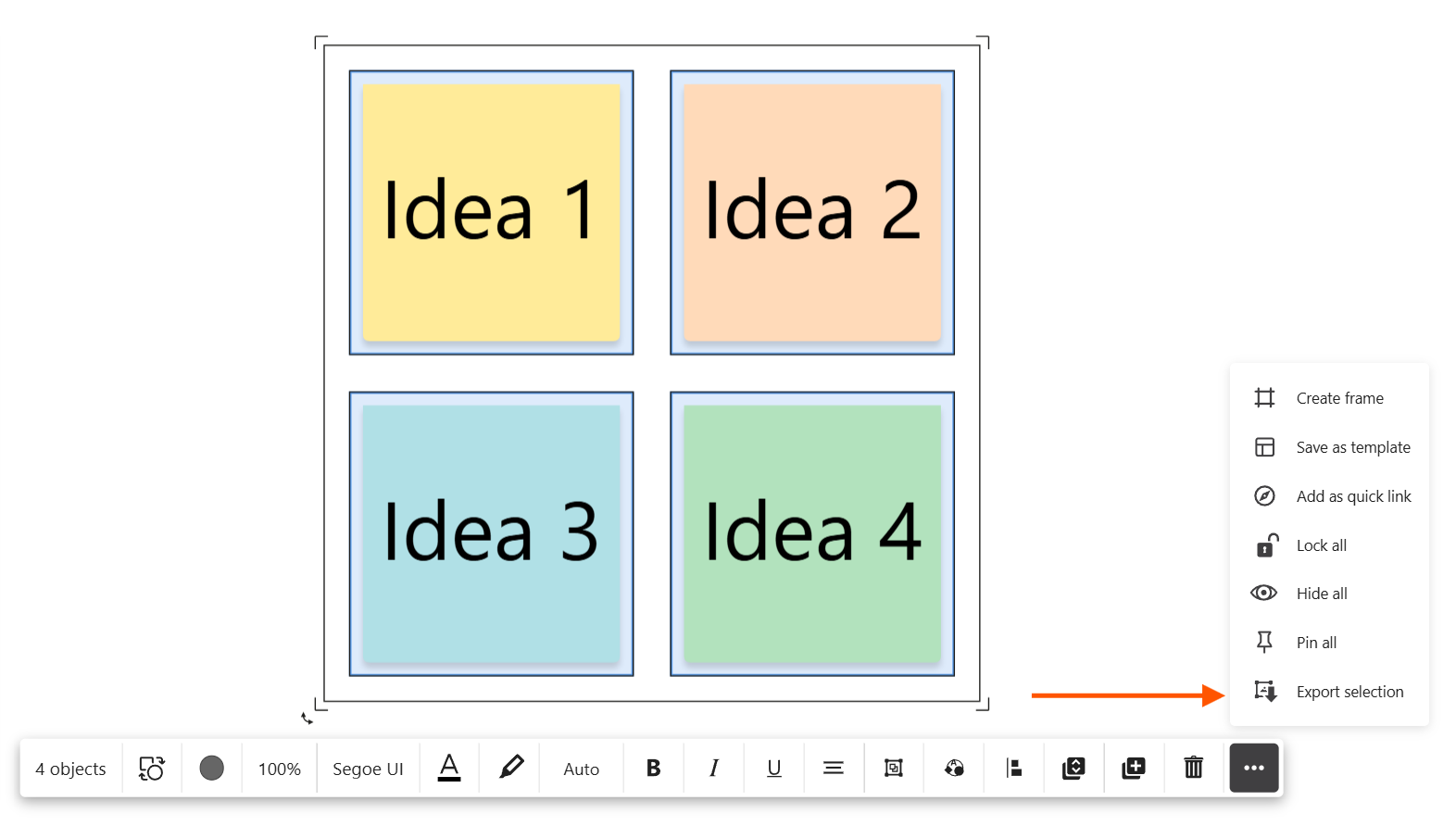
Select the sticky notes you want to export.
-
Open the export menu.
-
Choose Text as the export type.
-
Click Export selection.
A CSV file is created containing the text from the selected sticky notes and additional information such as position, color, and object type.
You can open the file in Excel or import it into other tools to:
-
structure feedback
-
manage tasks
-
document workshop results
-
reuse ideas in reports or presentations
