![logo-type_black 2.svg]](https://help.collaboard.app/hubfs/logo-type_black%202.svg)
Step 1: Export the board from Conceptboard
Open the board you want to migrate in Conceptboard.
- Click “Board” in the menu.
- Select “Export board”.
- Choose “Export board as PDF”.
- Save the exported PDF file to your computer.
This PDF file will then be used for the import into Collaboard.
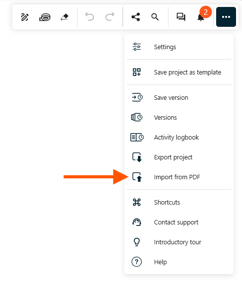
Step 2: Import the Conceptboard board into CollaboardOpen Collaboard and start the PDF import.
- Select “Import PDF”.
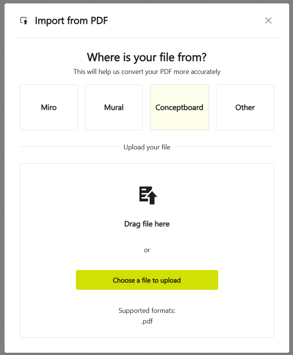
- Upload the PDF file you previously exported from Conceptboard.
- Select “Conceptboard Import” as the import option.
- Start the import.
Collaboard will then analyze the PDF file and attempt to convert the contained Conceptboard objects into corresponding Collaboard elements.
|
|
|
Object Mapping: Conceptboard → Collaboard
| Conceptboard Object | Imported into Collaboard as | Notes |
|---|---|---|
| Sticky Note | Sticky Note / Card | Sticky notes are imported as editable sticky notes. |
| Text | Text | Text is imported as editable text elements. |
| Shapes | Shapes | Standard shapes are imported as corresponding shapes where possible. Special shapes may be imported as images. |
| Icons | Images | Icons are imported as images. |
| Drawings | Images | Freehand drawings are imported as images. |
| Lines | Lines | Lines are imported as corresponding line elements. |
| Images | Images | Images are imported as images. |
| Documents | Images | Document content is imported as images. The original document functionality is no longer available after the import. |
| Tasks | Group of images, text, and other elements | Tasks are visually reconstructed. The original Conceptboard task functionality is not transferred as native Collaboard tasks. It is possible to use the convert object feature in Collaboard to convert the text from the task in a Collaboard task. |
| Comments | Group of images, text, and other elements | Comments are imported as visual content and are not transferred as native Collaboard comments. |
| Tables | Images and text | Tables are reconstructed from multiple elements. The resulting structure may therefore not behave like a native Collaboard table. |
| Sections | Shape | Conceptboard sections are represented as shapes on the Collaboard board. They can be transformed with two clicks into frames and quick links. |
Board structure is rebuilt in Collaboard
During the import, Collaboard rebuilds the board based on the structure of the original Conceptboard board. The position and arrangement of the imported elements are preserved as closely as possible, so the migrated board reflects the same overall layout and organization.
This makes it possible to transfer not only the content of a Conceptboard board, but also its visual structure and context. Instead of manually recreating boards from scratch, existing boards can be migrated to Collaboard quickly and with minimal effort.
After the import, users can continue working with the migrated content directly in Collaboard and further adapt or enhance the board using native Collaboard features.
Which elements remain editable?
Simple board elements can generally still be edited directly after the import:
- Sticky notes
- Text
- Standard shapes
- Lines
- Images
These elements behave largely like regular elements created directly in Collaboard.
Which elements are imported visually?
More complex or Conceptboard-specific elements cannot always be transferred as identical Collaboard objects. In these cases, the main goal is to preserve the visual appearance of the original board as accurately as possible.
This applies in particular to:
- Icons
- Drawings
- Documents
- Tasks
- Comments
- Tables
- Special shapes
These elements may be imported as images or as groups consisting of several individual elements.
What to check after the import
After the migration, we recommend reviewing each important board briefly. Pay particular attention to:
- Complex shapes
- Tables
- Tasks
- Comments
- Documents
- Drawings
- Very large or complex boards
- Groups with many overlapping elements
If needed, these elements can then be adjusted directly in Collaboard or rebuilt using native Collaboard functionality.